 Blur Face
Free AI Face Blur —
Hide & Redact Faces Online
Redact faces with local browser processing, no account, and manual controls for reviewing missed detections before export.
Add Files
Tap to select photos
Working with video? Blur faces in a video →
How to Blur Faces Online, Hide, and Redact Them
Use face blur online to blur or hide a face in a picture for total privacy. Our intuitive editor makes face blurring effortless — no account registration or technical skills needed.
1. Select Images
Select one or multiple photos from your device. We support JPEG, PNG, and WebP formats. Images are opened in the browser and are not intentionally sent to a Blur Face image-processing server.
2. Auto-Detect & Edit
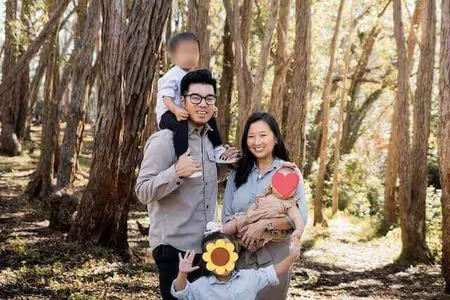
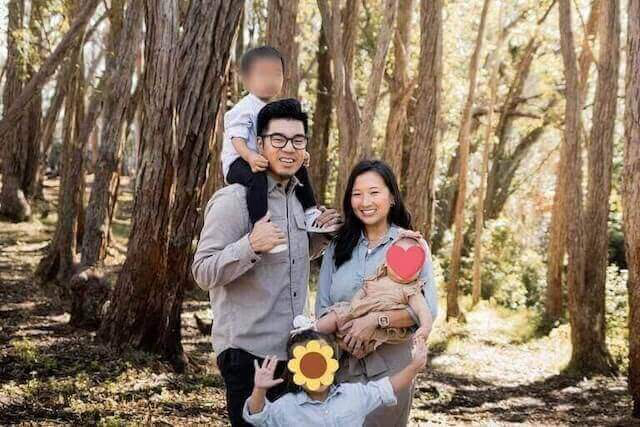
Our AI instantly creates a privacy layer over detected faces. You can customize the blur intensity, choose different blocking styles (like pixels or emojis), or manually refine the masked areas.
3. Export & Share
Export your privacy-protected photos in high quality. We automatically strip sensitive metadata (EXIF) to ensure your location and device details remain private.
Why Choose Blur Face?
We combine professional-grade AI detection with a strict privacy-first architecture.
-
Smart AI Detection
Our machine learning model accurately identifies multiple faces in complex scenes, saving you hours of manual editing time.
-
Precision Control
Need more control? Easily adjust blur zones, add manual blocks to license plates or documents, and tweak the aesthetic style of your redaction.
-
100% Client-Side Privacy
Editing runs in your browser via WebAssembly. The selected source image is not intentionally sent to a Blur Face image-processing server; you can verify requests with the browser Network panel.
Privacy Compliance for Professionals
Designed for legal, law enforcement, and security experts.
Supports Data Minimization
Local processing can reduce image transfers, but organizations must verify their own legal and policy requirements.
No Cloud Exposure
Source-image editing runs locally instead of sending the file to a Blur Face image-processing server.
EXIF Data Removal
Automatically strip GPS and device metadata to prevent location tracking.
A More Private Editing Workflow
See the difference between standard cloud processing and our secure local approach.
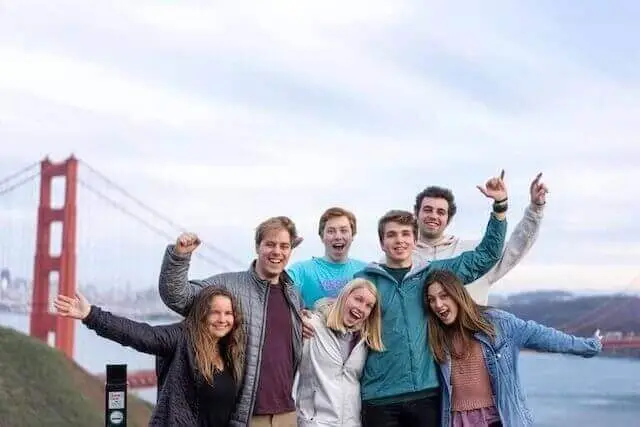
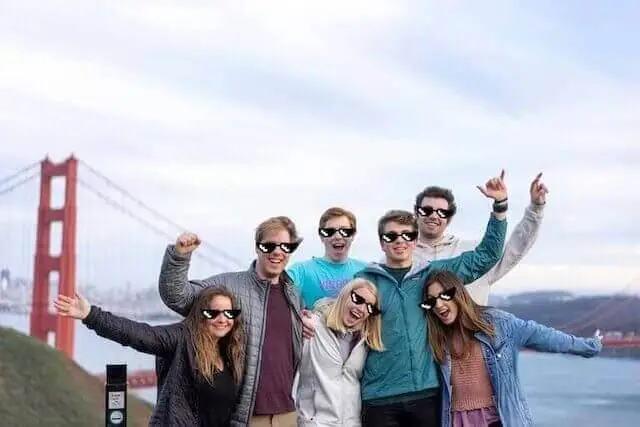
Before: Identifiable faces and metadata exposed.
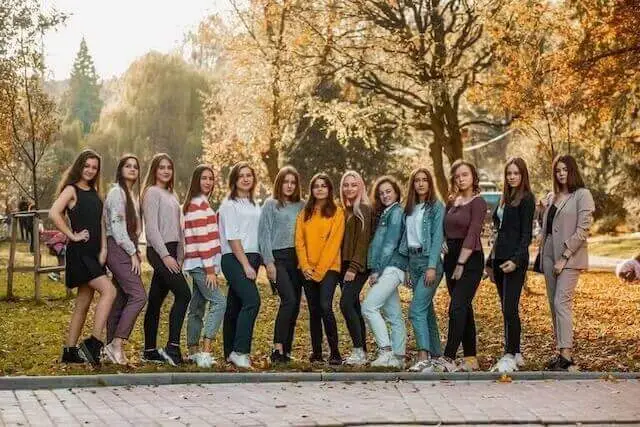
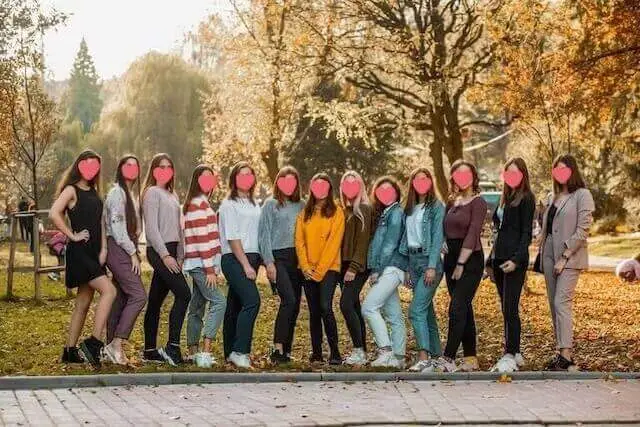
After: Selected details obscured and export metadata reduced; review the result before sharing.
How to Blur Faces in Photos on iPhone Free
Protect your privacy on the go. No app download required.

frame-by-frame AI blur
Blur Faces in Videos, Too
Local detection creates editable face blurs across supported H.264 video. Review the result frame by frame because tracking can miss faces.
- Automatic detection with manual review
- Runs in your browser — no upload, no server
- Free — supports MP4 & MOV (H.264)
AI Batch Photo Naming — Auto-Rename 100 Photos in Seconds | Blur Face
Done blurring? Let AI name every file for you — automatically. Get SEO-friendly filenames like family-trip-blurred.jpg instead of IMG_8492.jpg. One click, no manual work.
Frequently Asked Questions
Learn more about our technology and how we keep your data safe.
Is Blur Face really free?
Yes, our face blur tool is completely free to use without any hidden fees or subscriptions. Unlike many other online photo editors that restrict features behind a paywall or limit the number of images you can process daily, Blur Face offers unlimited access to its core functionality. We believe that digital privacy should be accessible to everyone, which is why we do not require you to create an account, register your email, or provide credit card information. You can use our tool to pixelate, censor, or blur as many images as you need, whether you are a casual user protecting family photos or a professional processing business documents. Our platform is supported through non-intrusive advertisements and voluntary donations, allowing us to maintain high-quality serverless infrastructure while keeping the tool 100% free for the global community.
How does the AI face detection work?
The face detector runs in your browser and examines image pixels on your device. The selected image is not intentionally sent to a Blur Face image-processing server. Detection speed varies by device, image size, and the number of faces. Automatic detection can miss small, angled, covered, reflected, or low-contrast faces, so review the full image and add manual redactions before exporting.
Can I blur multiple faces at once?
Yes. The detector can create redaction areas for multiple faces in one image, which can reduce repetitive work on group photos. It may not find every face, especially small background faces, profiles, reflections, or partially covered faces. Inspect the entire image, resize detected areas, remove false positives, and manually cover anything the detector missed.
Is it safe to process confidential photos?
Local processing avoids sending the selected image to a Blur Face image-processing server, but no web tool can guarantee that a workflow is appropriate for every confidential or regulated file. Check your organization’s security, legal, retention, and approved-software requirements. Use the browser Network panel if you need to verify requests for your session, and review the exported file before sharing it.
Does it work on mobile phones?
Yes, Blur Face is fully optimized for mobile devices and provides a seamless, app-like experience across all modern smartphones and tablets. Whether you are using an iPhone running iOS, an Android device, or a tablet like an iPad, you can access the full suite of features directly through your mobile web browser (such as Safari, Google Chrome, Firefox, or Edge). There is no need to visit the App Store or Google Play to download a bulky application that consumes your device's storage space. The mobile interface features intuitive touch controls, allowing you to easily tap faces to blur them, pinch to zoom for precise editing, and drag your finger to draw custom censor boxes. Furthermore, since the processing relies on your device's local hardware, it operates efficiently without consuming massive amounts of mobile data, making it perfect for editing on the go.
Can I blur things other than faces?
Yes, our tool is incredibly versatile and goes far beyond just blurring human faces. While our AI is optimized for facial detection, the manual editing capabilities allow you to obscure any sensitive information or unwanted elements in your photographs. By using the manual "Add Block" feature, you can click and drag to draw custom redaction boxes over a wide variety of subjects. This is incredibly useful for blurring out vehicle license plates to protect driver privacy, censoring explicit or graphic content before sharing it online, hiding confidential text such as home addresses, bank account numbers, or passwords in screenshots, and covering up branded logos or identifying tattoos. You can choose to apply a soft blur, a pixelated mosaic, or a solid black box to these custom areas, giving you complete flexibility for any redaction use case.
What happens to the photo metadata?
Removing hidden metadata, commonly known as EXIF data, is a crucial step in protecting your digital privacy, and Blur Face handles this automatically for you. Whenever you take a photo with a smartphone or modern digital camera, the device invisibly embeds detailed information into the image file. This EXIF data often includes your exact GPS location coordinates, the date and time the photo was taken, the device model, and specific camera settings. When you use Blur Face to edit and download an image, our processing engine automatically strips all of this hidden metadata from the final exported file. You do not need to click any special buttons or toggle any settings; the metadata removal is a built-in security feature. This ensures that when you share the redacted image on social media or send it to others, you are not inadvertently leaking your location or personal habits.
Do you add watermarks to the photos?
No, we never add watermarks, branding, or intrusive logos to your edited and exported images. We understand that whether you are using Blur Face for personal social media posts, professional journalistic reporting, or corporate compliance, you need clean, unbranded results. Many free online tools force a watermark onto your final image and require a paid premium subscription to remove it. We strongly believe that privacy tools should not compromise the aesthetic quality or usability of your photos. The image you export will look exactly as you edited it, preserving the original aspect ratio and as much of the original image quality as possible, with only your intended blurs or censors applied. You retain full ownership and copyright of your edited images, free to use them in any personal or commercial context without any forced attribution.
What image formats are supported?
Blur Face is designed to support a wide range of standard image formats to ensure compatibility with photos taken from almost any device or downloaded from the web. You can seamlessly select and edit images in JPEG (and JPG), PNG, WebP, and AVIF formats. JPEG is ideal for standard smartphone camera photos, while PNG is perfectly supported for images requiring lossless quality or transparent backgrounds (note that the exported image may be flattened depending on the blur application). We also support modern next-generation formats like WebP, which offer superior compression and quality. When you finish editing and click the export button, the tool will typically export your image as a high-quality JPEG or PNG to ensure maximum compatibility across all platforms, social media networks, and messaging apps, making it incredibly easy to share your newly anonymized photos immediately.
Can I undo mistakes?
Yes, you have complete flexibility to undo mistakes and adjust your edits before finalizing the image. Because Blur Face is an interactive, non-destructive editor, your original selected photo remains untouched in the background until you decide to click the export button. If you accidentally apply a blur to the wrong person, simply tap or click on that specific blur mask to instantly remove it. If you have drawn a custom censor box that is the wrong size or in the wrong location, you can easily select it, drag its corners to resize it, move it around the canvas, or delete it entirely using the trash can icon. Furthermore, we provide a "Clear All" button that instantly removes every single blur, pixelation, and censor box from the canvas, allowing you to start fresh without needing to select the original image again.
Ready to Protect Your Privacy?
Join thousands of users who trust Blur Face for secure, anonymous photo sharing.
Start Blurring Now